How portal-based IPTV works
Unlike app-based setups where you type a username and password, MAG boxes (and Formuler devices in portal mode) usually connect using two pieces of information:
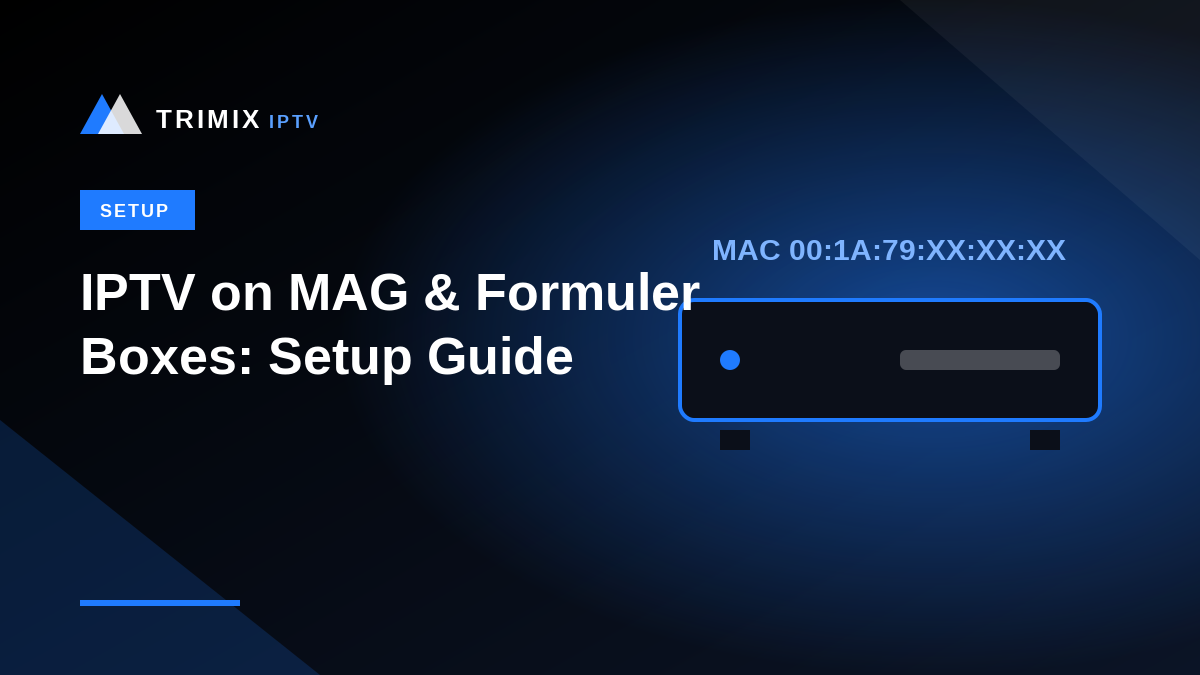
- the box's MAC address — a unique hardware ID printed on a sticker and shown in the menus;
- a portal URL — a web address supplied by your IPTV provider.
You send your MAC address to the provider, they link it to your subscription, and you enter the portal URL on the box. When the box connects, the portal recognises its MAC and loads your channels. New to terms like these? Our IPTV glossary has quick definitions.
Step 1: Find your MAC address
- Check the sticker on the bottom or back of the box — it usually starts with
00:1A:79on MAG devices. - Or look in the menu: on MAG boxes it's typically under Settings → Device info; on Formuler devices under Settings → About.
Send the MAC address to the Trimix IPTV team on WhatsApp. Double-check every character — a single wrong digit means the portal won't recognise your box.
Step 2: Enter the portal on a MAG box
- Connect the box to your TV by HDMI and to your router, ideally with an Ethernet cable.
- On the home screen, open Settings → System settings → Servers → Portals (menu names vary slightly by model and firmware).
- Enter a name for Portal 1 (anything you like) and type the portal URL exactly as provided.
- Save, go back and choose Restart portal, or reboot the box.
- The box connects to the portal and loads your channel list, VOD sections and TV guide.
Step 2 (alternative): Formuler devices
Formuler boxes run Android and use a dedicated IPTV app (commonly MyTVOnline on many models). Within the app you can usually add a portal (MAC-based) connection, and on newer versions an Xtream-style login as well.
- Open the IPTV app and choose to add a new portal or connection.
- Select the portal option and enter the portal URL, or choose the login option if your provider gave you a username and password.
- Save and connect. The channel groups and guide will load.
Step 3: Recommended settings
- Update the firmware when the box offers it — updates often improve stability and compatibility.
- Set the correct time zone so the TV guide lines up with real broadcast times.
- Match the output resolution to your TV (for example 1080p or 2160p on 4K-capable models).
- Use Ethernet where you can — MAG boxes are often used with cables for good reason.
Common errors and fixes
"Portal not found" or "Loading portal…" forever
Re-check the portal URL character by character, including any trailing slash. Confirm with us that your MAC has been linked. Restart the box.
"STB blocked" or "Access denied"
The MAC address isn't recognised or the subscription isn't active. Send us a photo of the error and your MAC address.
Channels load but the guide is empty
Check the time zone, then restart the portal. Guide data may take a few minutes to appear.
Picture freezes
Switch to a wired connection if possible, and see our Wi-Fi vs Ethernet guide.