Your player options
On a computer you can choose between:
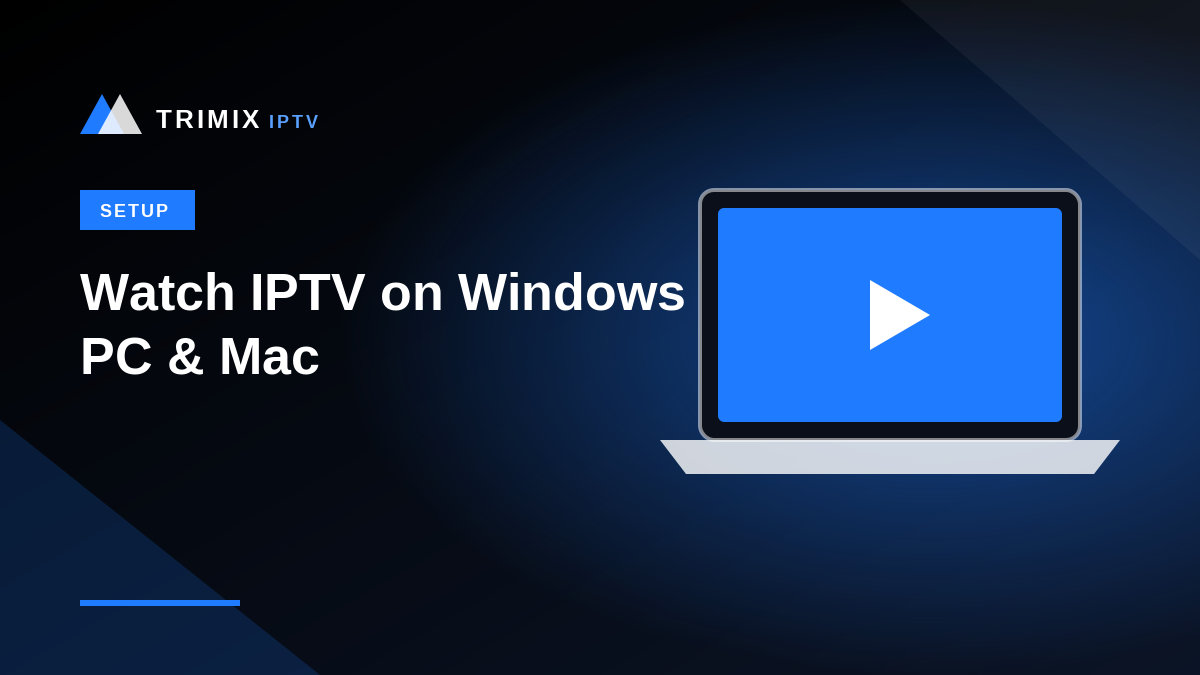
- Dedicated IPTV players — apps designed for IPTV, with channel groups, a TV guide, favourites and VOD sections. Several are available for Windows (including in the Microsoft Store) and macOS (including in the Mac App Store).
- General media players — some popular open-source media players can open M3U playlists. They're simple and reliable, but usually lack a proper TV guide and tidy VOD browsing.
For everyday viewing, a dedicated IPTV player gives the most TV-like experience. Our team can recommend one that suits your system.
Setting up on Windows
- Install the IPTV player recommended by your provider, from the Microsoft Store or the developer's official website.
- Open it and choose Add playlist or Add user.
- Select the login method: username, password and server URL, or an M3U playlist link.
- Paste your details — copy-paste avoids typos — and save.
- Wait for channels, movies and series to load, then refresh the TV guide if the player has that option.
If Windows Defender Firewall asks whether to allow the app network access, allow it on private networks so the player can stream.
Setting up on macOS
- Install a compatible IPTV player from the Mac App Store or the developer's official site. If macOS warns about an app from the internet, only proceed if you trust the source.
- Open the player and add your subscription using the login or playlist method.
- Let the content load, then add your favourite channels.
Apple-silicon Macs handle high-resolution video efficiently, so 4K playback is usually smooth on a good connection.
Watching on a TV from your computer
- HDMI cable: the simplest and most reliable method. Connect the laptop to the TV and choose "duplicate" or "extend" display.
- Wireless casting: some players support casting, and Macs can use AirPlay with compatible TVs. Wireless adds another link that can introduce stutter, so cables are better for live sport.
If you mainly watch on the TV, a dedicated streaming device or box is usually more convenient — see our MAG and Formuler guide.
Getting smooth playback
- Use Ethernet on desktops or docked laptops where possible (here's why).
- Close heavy apps and browser tabs while watching.
- Plug laptops into power — battery-saving modes can throttle video decoding.
- Keep your graphics drivers (Windows) and macOS up to date.
- Pause large downloads and cloud sync during live events.
Set up Trimix IPTV on your computer: every plan includes 24/7 setup support. Contact us or start a free trial.